Check Mail Fetch Settings (Most Common)
The most important setting is whether your email account is set to Push or Fetch data.
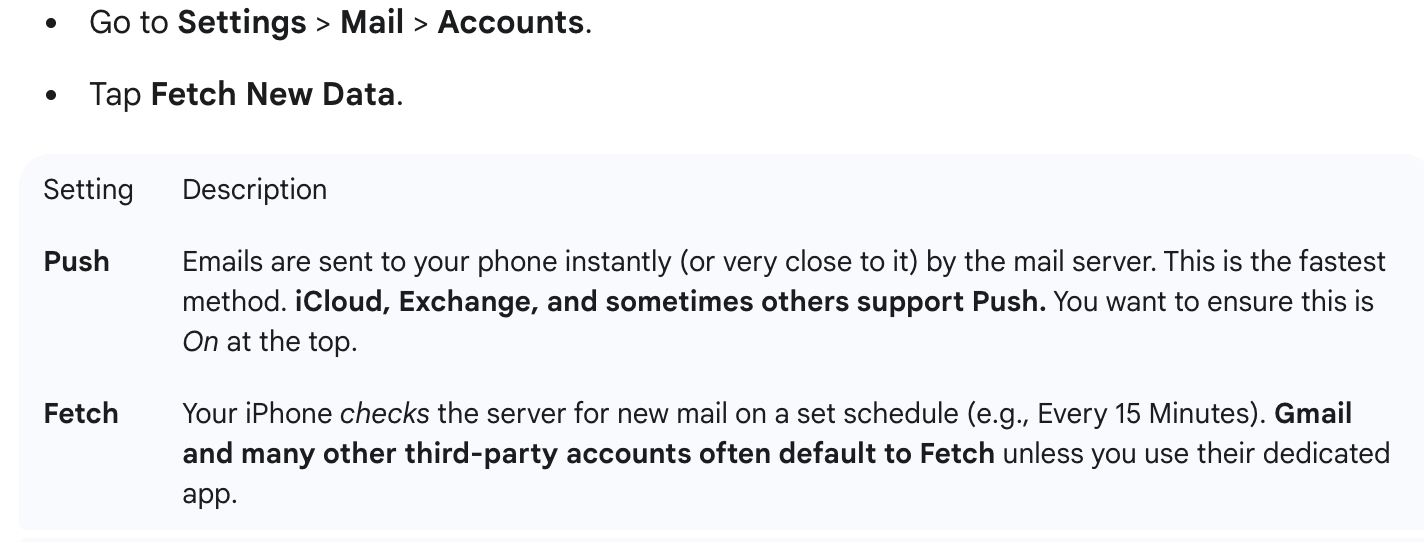
If your main email account (like Gmail or Yahoo) is listed and set to Fetch, the one-minute delay might be a brief lag near the end of a Fetch cycle, or the "Automatically" setting might be slower than you'd like.
Action: If your email provider supports it, ensure your account is set to Push. If not, set the Fetch schedule to Every 15 Minutes (the shortest interval available).
Check for Power/Data Restrictions
- Low Power Mode: When active (yellow battery icon), Low Power Mode can temporarily disable or reduce background mail fetching to save battery.
- Action: Go to Settings > Battery and ensure Low Power Mode is Off.
- Low Data Mode: This can restrict background activity, including mail, when on Wi-Fi or Cellular.
- Action: Check Settings > Wi-Fi (tap the 'i' next to your network) or Settings > Cellular > Cellular Data Options and ensure Low Data Mode is Off.
Check Notification & Focus Settings
- Scheduled Summary: This feature bundles notifications and delivers them at scheduled times, which would cause a delay.
- Action: Go to Settings > Notifications. Ensure the Mail app is NOT included in any Scheduled Summary and that its delivery is set to Immediate Delivery.
- Focus Modes: Modes like 'Do Not Disturb' or 'Sleep' can silence or delay notifications.
- Action: Swipe down from the top-right corner to open Control Center and ensure no Focus modes (like a crescent moon icon) are active unless you intend for them to be.
Internet and Connection Glitches
A temporary network hiccup can cause a small delay.
- Action: Try toggling Airplane Mode on for about 10 seconds, then off. This resets your Wi-Fi and Cellular connections.
If you are using Gmail or Outlook, their dedicated apps (downloaded from the App Store) often provide more reliable and immediate "Push" notifications than the native Apple Mail app.