Why can't i upgrade to windows 11 from Windows 10?

My Mac is currently running the latest Windows 10 Pro 22H2. I downloaded the Windows 11 Upgrade Assistant and follow the screen prompt to install Windows 11. After agreeing the terms and checking the system, it suddenly says:


This PC does not currently meet Windows 11 system requirements.


Why I can't I upgrade to Windows 11 from Windows 10? And how to solve this annoying issue as Windows 10 is out of support now.


MacBook Air (2018 – 2020)

Posted on Oct 15, 2025 2:00 AM

Reply
Question marked as Top-ranking reply

Posted on Oct 15, 2025 2:43 AM

I had the exact same issue on my Intel Mac running Windows 10 Pro via Boot Camp — the Windows 11 Upgrade Assistant said my PC didn’t meet the system requirements. That’s because Boot Camp Macs don’t have TPM 2.0 and Secure Boot exposed to Windows. What worked for me was using WinUpgradeMate, which safely handles the upgrade bypass without erasing anything.


It’s the easiest way to upgrade to Windows 11 from Windows 10 on unsupported hardware.


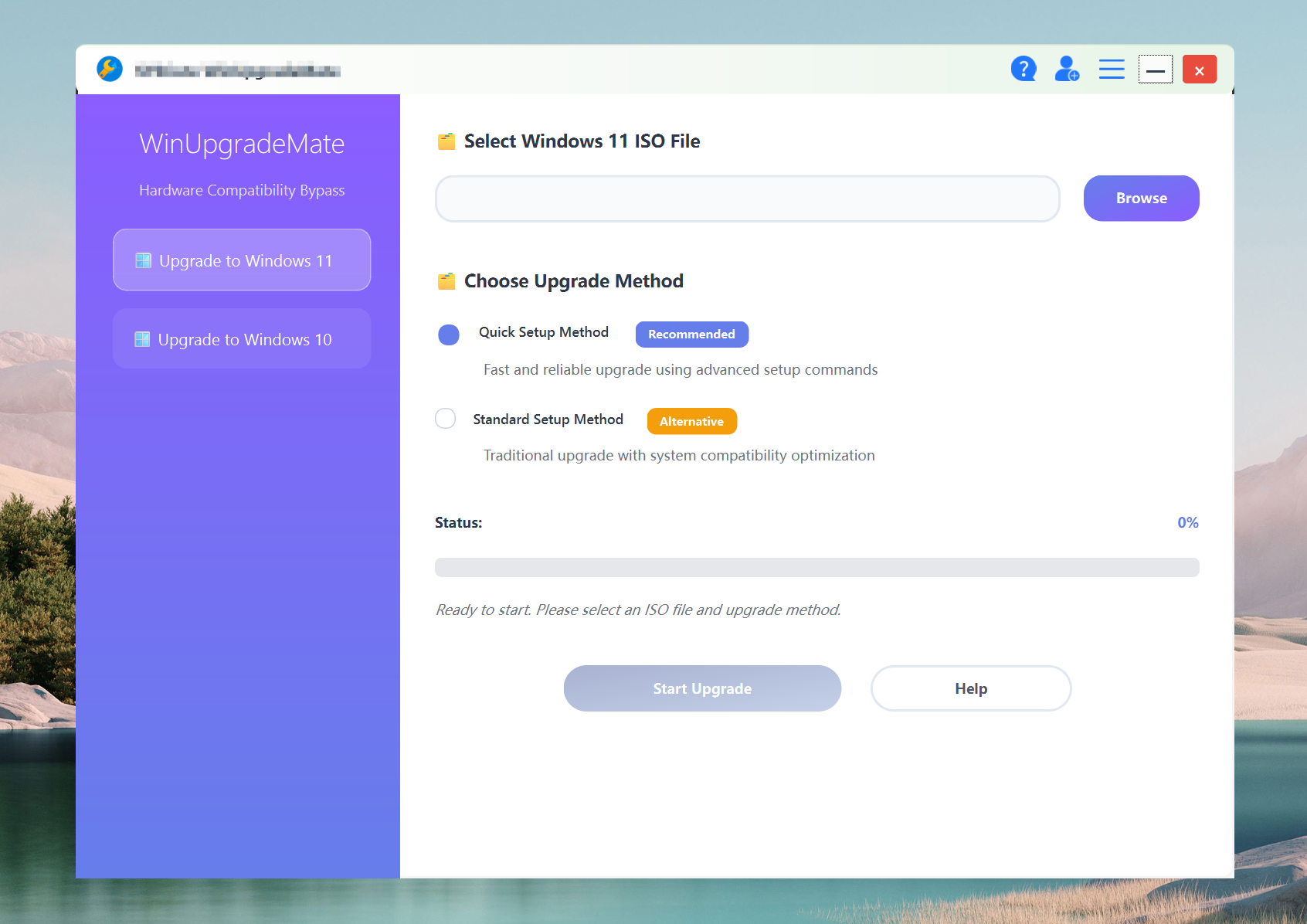
• Open WinUpgradeMate on your Windows 10 installation.


• Open it, select Upgrade to Windows 11, and it’ll automatically create the Microsoft-supported registry key (AllowUpgradesWithUnsupportedTPMOrCPU=1).


• It mounts the Windows 11 ISO and starts setup automatically — just pick “Keep personal files and apps.”


• Once it completes, you’re running Windows 11 with all your files intact.


Before starting, make sure you’re using an Intel Mac (Boot Camp doesn’t support Apple Silicon — Install Windows 10 on your Mac with Boot Camp Assistant - Apple Support) and that macOS’s Startup Security Utility is set to Medium Security and Allow booting from external media (About Startup Security Utility on a Mac with the Apple T2 Security Chip - Apple Support).


Alternative: If you want to do it manually, the command-line method also works fine and doesn’t need any tools.


• Mount your Windows 11 ISO in Windows 10 (right-click → Mount).


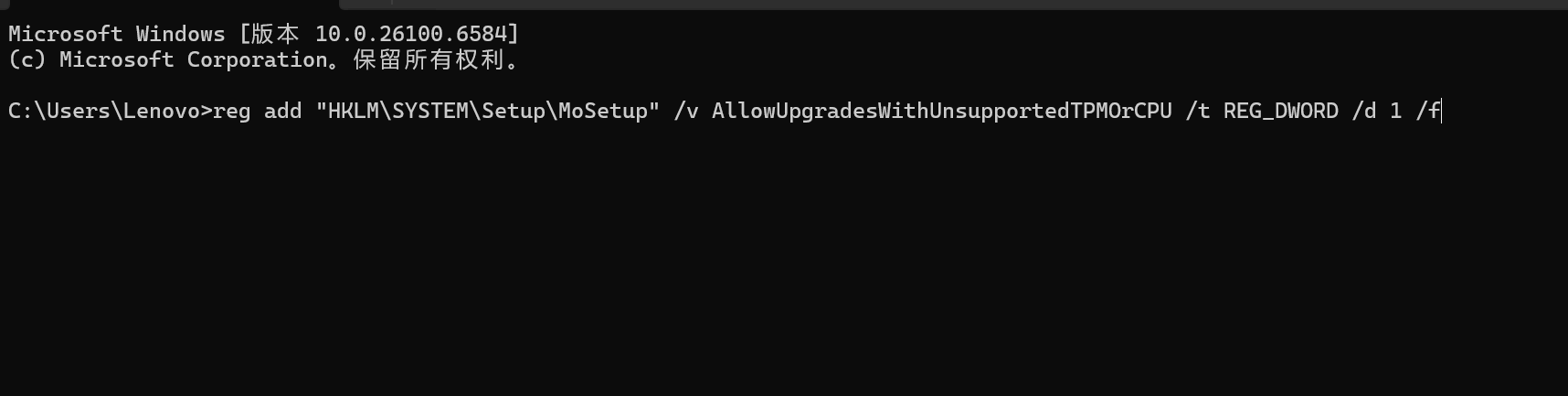
• Open Command Prompt as Administrator and enter:

reg add "HKLM\SYSTEM\Setup\MoSetup" /v AllowUpgradesWithUnsupportedTPMOrCPU /t REG_DWORD /d 1 /f


• Then remove the appraiser file that causes the block:


del X:\sources\appraiserres.dll


(Replace X: with your mounted ISO’s drive letter.)


• Run the installer:

X:\setup.exe


• Choose Keep personal files and apps and finish setup.


This lets you upgrade to Windows 11 from Windows 10 safely with your data untouched, all through official components.


Why it happens:

Boot Camp Macs don’t expose TPM 2.0 to Windows, so Microsoft’s installer flags them as unsupported. Adjusting Startup Security in macOS (About Startup Security Utility on a Mac with the Apple T2 Security Chip - Apple Support) and using this registry path resolves it.


If you ever need to tweak the Mac side again, Apple’s macOS Recovery doc explains how to restore or change these security settings (How to start up from macOS Recovery - Apple Support).



4 replies
Question marked as Top-ranking reply

Oct 15, 2025 2:43 AM in response to zbookvc

I had the exact same issue on my Intel Mac running Windows 10 Pro via Boot Camp — the Windows 11 Upgrade Assistant said my PC didn’t meet the system requirements. That’s because Boot Camp Macs don’t have TPM 2.0 and Secure Boot exposed to Windows. What worked for me was using WinUpgradeMate, which safely handles the upgrade bypass without erasing anything.


It’s the easiest way to upgrade to Windows 11 from Windows 10 on unsupported hardware.


• Open WinUpgradeMate on your Windows 10 installation.


• Open it, select Upgrade to Windows 11, and it’ll automatically create the Microsoft-supported registry key (AllowUpgradesWithUnsupportedTPMOrCPU=1).


• It mounts the Windows 11 ISO and starts setup automatically — just pick “Keep personal files and apps.”


• Once it completes, you’re running Windows 11 with all your files intact.


Before starting, make sure you’re using an Intel Mac (Boot Camp doesn’t support Apple Silicon — Install Windows 10 on your Mac with Boot Camp Assistant - Apple Support) and that macOS’s Startup Security Utility is set to Medium Security and Allow booting from external media (About Startup Security Utility on a Mac with the Apple T2 Security Chip - Apple Support).


Alternative: If you want to do it manually, the command-line method also works fine and doesn’t need any tools.


• Mount your Windows 11 ISO in Windows 10 (right-click → Mount).


• Open Command Prompt as Administrator and enter:

reg add "HKLM\SYSTEM\Setup\MoSetup" /v AllowUpgradesWithUnsupportedTPMOrCPU /t REG_DWORD /d 1 /f


• Then remove the appraiser file that causes the block:


del X:\sources\appraiserres.dll


(Replace X: with your mounted ISO’s drive letter.)


• Run the installer:

X:\setup.exe


• Choose Keep personal files and apps and finish setup.


This lets you upgrade to Windows 11 from Windows 10 safely with your data untouched, all through official components.


Why it happens:

Boot Camp Macs don’t expose TPM 2.0 to Windows, so Microsoft’s installer flags them as unsupported. Adjusting Startup Security in macOS (About Startup Security Utility on a Mac with the Apple T2 Security Chip - Apple Support) and using this registry path resolves it.


If you ever need to tweak the Mac side again, Apple’s macOS Recovery doc explains how to restore or change these security settings (How to start up from macOS Recovery - Apple Support).


Oct 15, 2025 2:46 AM in response to zbookvc

Windows 11 requires Intel 8th Gen processor, secure boot and TPM 2.0. As far as I know, TPM is not available on any Mac, which provides Apple T2 Security Chip instead.


This is main reason why you can't upgrade to Windows 11 from Windows 10. However, this error can be easily fixed with registry hacks or a dedicated app.


Sources: How to Fix "Can't upgrade to Windows 11" Error


Windows 11 hardware checks can be bypassed by adding registry values either in a running Windows install to allow an upgrade on unsupported TPM/CPU, or during a clean install by creating a LabConfig key that tells Setup to skip checks. Both approaches are widely published and used, but they leave the machine unsupported and carry security/instability risks.


Method 1: Direct Upgrade by Modifying Registry (Keep apps and files)


Open Notepad and paste this, save as allow-upgrade.reg:


Windows Registry Editor Version 5.00
HKEY_LOCAL_MACHINE\SYSTEM\Setup\MoSetup]
"AllowUpgradesWithUnsupportedTPMOrCPU"=dword:00000001


Double-click the .reg file and accept the prompts, then run the Windows 11 Setup (ISO setup.exe) to perform the upgrade.


Notes: Microsoft’s docs/answers indicate this key lets some unsupported systems proceed (in practice it historically expected at least TPM 1.2 on some hardware).


Method 2: Clean Install Windows 11 from USB (Delete files and apps)


If you are doing a clean install from ISO and get blocked in the installer, you can open a command prompt (Shift+F10) and launch regedit, then create a LabConfig key and add bypass DWORDs. Example .reg you can import from the installer command prompt:


Windows Registry Editor Version 5.00

[HKEY_LOCAL_MACHINE\SYSTEM\Setup\LabConfig]
"BypassTPMCheck"=dword:00000001
"BypassCPUCheck"=dword:00000001
"BypassSecureBootCheck"=dword:00000001
"BypassRAMCheck"=dword:00000001

After adding these, close regedit and continue Setup. This will help you upgrade to Windows 11 from Windows 10 without any error.

Oct 15, 2025 2:53 AM in response to zbookvc

You can try the Flyby11 if you can't upgrade to Windows 11 from Windows 10. It is an open-source, user-friendly utility that automates the common tricks used to bypass Windows 11 installer hardware checks (TPM, Secure Boot, certain CPU checks) so you can upgrade or install Windows 11 on "unsupported" PCs.


Download the Windows 11 ISO from Microsoft. Place it somewhere accessible.


The tool usually automates registry LabConfig edits and the correct setup.exe invocation or remasters the ISO. If asked, accept elevation and follow prompts. Once setup begins, follow the normal Windows setup flow


Expect possible Windows Update warnings or restricted updates for unsupported hardware. Be prepared to manually install drivers and check for feature updates

This thread has been closed by the system or the community team. You may vote for any posts you find helpful, or search the Community for additional answers.

Why can't i upgrade to windows 11 from Windows 10?

Welcome to Apple Support Community
A forum where Apple customers help each other with their products. Get started with your Apple Account.