Why do my AirPods show a different model number in settings?
Model number under settings show A3000
on AirPods show A2084? Then I get a message could not be verified as genuine AirPods?
[Re-Titled by Moderator]
Model number under settings show A3000
on AirPods show A2084? Then I get a message could not be verified as genuine AirPods?
[Re-Titled by Moderator]
Hello Rootwhitt,
To help us better assist you, can you let us know if you've always received that message trying to connect your AirPods?
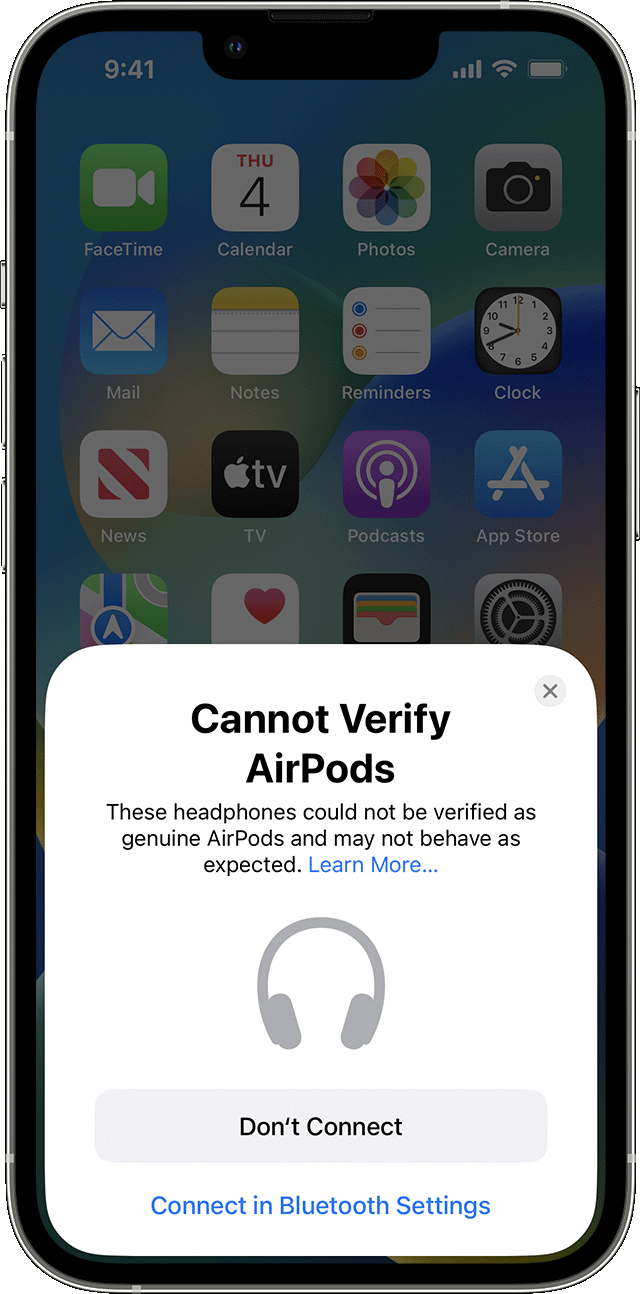
If you receive a "Cannot Verify AirPods" alert, you should verify that your AirPods are genuine.
Please check out this link, as it has more information about that error, and what to do: If you get a 'Cannot Verify AirPods' alert
If you get this alert when you try to connect your AirPods with your iPhone, iPad, or iPod touch, verify that your AirPods are genuine.
You can choose to not connect your unverified AirPods, or to connect them in Bluetooth settings. If you connect your unverified AirPods, they may not behave as expected.
For more information, contact the place of purchase.
To help verify that your AirPods are genuine, identify your AirPods.
The link you came from has information that can help you identify your AirPods, and may be helpful: Identify your AirPods
Look in Settings
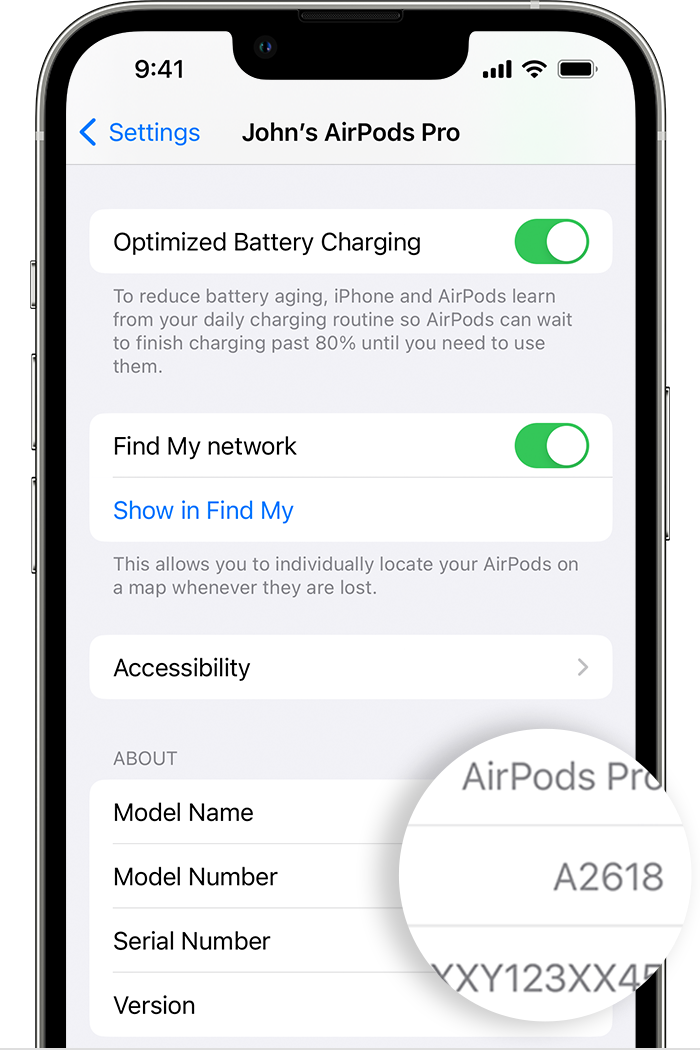
1. Go to Settings > Bluetooth. Alternatively, you can go to Settings > [your AirPods].*
2. Find your AirPods in the list (for example, "John's AirPods").
3. Tap the More Info buttonnext to your AirPods, and you'll see the model number.
* If your device doesn't have iOS 14 or iPadOS 14 or later and your AirPods are connected to your device, you can find the model number by going to Settings > General > About. Then scroll down until you see the name of your AirPods, and then tap the name.
Thank you.
Hello Rootwhitt,
To help us better assist you, can you let us know if you've always received that message trying to connect your AirPods?
If you receive a "Cannot Verify AirPods" alert, you should verify that your AirPods are genuine.
Please check out this link, as it has more information about that error, and what to do: If you get a 'Cannot Verify AirPods' alert
If you get this alert when you try to connect your AirPods with your iPhone, iPad, or iPod touch, verify that your AirPods are genuine.
You can choose to not connect your unverified AirPods, or to connect them in Bluetooth settings. If you connect your unverified AirPods, they may not behave as expected.
For more information, contact the place of purchase.
To help verify that your AirPods are genuine, identify your AirPods.
The link you came from has information that can help you identify your AirPods, and may be helpful: Identify your AirPods
Look in Settings
1. Go to Settings > Bluetooth. Alternatively, you can go to Settings > [your AirPods].*
2. Find your AirPods in the list (for example, "John's AirPods").
3. Tap the More Info button
* If your device doesn't have iOS 14 or iPadOS 14 or later and your AirPods are connected to your device, you can find the model number by going to Settings > General > About. Then scroll down until you see the name of your AirPods, and then tap the name.
Thank you.
Why do my AirPods show a different model number in settings?