Naming pictures by date taken

Is it possible to name multiple pictures by the date and time they were taken?

I find that if I try ot do this in finder it names all the pictures by todays date instead.


PS: I can not do this in the «Picture» app because my iMac is to old to update this program – and the program can therefor no longer be used fluently between my maskines. (My laptop has the new version, but than I can not go back to work on my iMac... :(

iMac 27″, macOS 10.15

Posted on Dec 13, 2021 4:25 AM

Reply
Question marked as Top-ranking reply

Posted on Dec 13, 2021 5:50 AM

It is possible without installing Xcode (to get the SetFile command) by installing the free ExifTool and using that to assign the DateTimeOriginal, or DateTimeCreated metadata to the renamed filename. You can process a directory of images with one command if needed. See, How can I rename files to match their EXIF "created date"?

4 replies
Question marked as Top-ranking reply

Dec 13, 2021 5:50 AM in response to IDfix

It is possible without installing Xcode (to get the SetFile command) by installing the free ExifTool and using that to assign the DateTimeOriginal, or DateTimeCreated metadata to the renamed filename. You can process a directory of images with one command if needed. See, How can I rename files to match their EXIF "created date"?

Dec 13, 2021 8:37 AM in response to IDfix

Double-click the ExifTool-12.37.pkg installer again. You will rceive the following dialog as you mentioned:
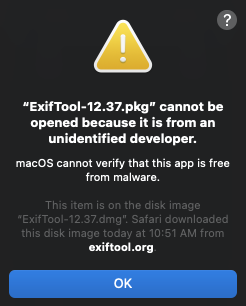

Click OK, and immediately visit System Preferences > Security & Privacy panel > General, and click Open Anyway button on that panel:
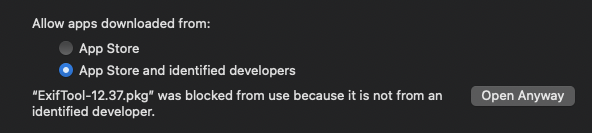


This will offer still another dialog which you click Open:
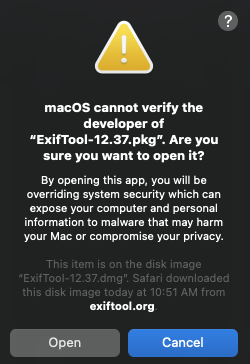


and then the ExifTool pkg installer will run and present you with the customary installer panel. You will need your administrator password to complete the installation. The ExifTool binary will be in /usr/local/bin/exiftool, and if your Terminal shell PATH is set to include the /usr/local/bin path, then you should be able to launch exiftool without the full path.


This installation of ExifTool via this pkg installer does not include a man page, but you can get that content with the following in the Terminal:


exiftool -h


This will be paginated output so you can press the spacebar to advance a page. Or, you can redirect the entire documentation to a text file on your Desktop:


exiftool -h >& ~/Desktop/exiftool.txt


This thread has been closed by the system or the community team. You may vote for any posts you find helpful, or search the Community for additional answers.

Naming pictures by date taken

Welcome to Apple Support Community
A forum where Apple customers help each other with their products. Get started with your Apple Account.