Searching with metadata attributes works in the Spotlight 'window', but not in Finder windows.

macOS 14.8.2. When I do a (text only) search in a Finder window (using the 'search' field), with the scope set to "This Mac", I get results, but when I run a search with metadata attributes, for a search term and kind that exist in my filesystem, e.g.:


shop kind:folder


… I get no results (even waiting for many minutes). When I run that same (metadata attribute) search in the Spotlight 'window' (in the Finder toolbar; also by invoking it from a keyboard shortcut), it works, and does so quickly.


I thought the 'search' field in Finder windows used the same Spotlight technology used in the Spotlight 'window'.


I just did a full Spotlight index rebuild, and that didn't help.

Posted on Jan 1, 2026 3:07 PM

Reply
Question marked as Top-ranking reply

Posted on Jan 1, 2026 4:56 PM

bob7 wrote:

macOS 14.8.2. When I do a (text only) search in a Finder window (using the 'search' field), with the scope set to "This Mac", I get results, but when I run a search with metadata attributes, for a search term and kind that exist in my filesystem, e.g.:

shop kind:folder

That's out of order. You should first set the kind token to Folder and then add "shop"

So,

kind:folder <return> shop
I thought the 'search' field in Finder windows used the same Spotlight technology used in the Spotlight 'window'.

It does, but the filters are different, so you will get different results.

10 replies
Question marked as Top-ranking reply

Jan 1, 2026 4:56 PM in response to bob7

bob7 wrote:

macOS 14.8.2. When I do a (text only) search in a Finder window (using the 'search' field), with the scope set to "This Mac", I get results, but when I run a search with metadata attributes, for a search term and kind that exist in my filesystem, e.g.:

shop kind:folder

That's out of order. You should first set the kind token to Folder and then add "shop"

So,

kind:folder <return> shop
I thought the 'search' field in Finder windows used the same Spotlight technology used in the Spotlight 'window'.

It does, but the filters are different, so you will get different results.

Jan 2, 2026 7:12 AM in response to bob7

Too avoid needless churning of Spotlight iterating through all of its categories seaking the word "shop" I recommend the following Spotlight keywords in this order:

kind:folder name:shop


That restricts the case-insensitive search to the filesystem only and not other enabled Spotlight categories.


You should also have the following set in the Finder Settings : Advanced panel:


when using the Search field from a Finder Window.

Jan 1, 2026 5:16 PM in response to Barney-15E

I constructed the find based on an example here:


Narrow your search results in Finder on Mac - Apple Support (AZ)


… where it gives one example:


  • trip kind:document searches for the word “trip” in documents only.


Granted, that is not exactly the same as:


shop kind:folder


I tried what you said, and it works. I didn't (even) have to hit return; it worked just typing it all in (but it also works when using <return>).


Thanks for that!


In Spotlight (menu bar), I can't press return, because doing so invokes the search immediately. (But as I wrote, it works just typing text as I originally constructed my search, or in the reverse order.


I'm curious why Apple would construct filters differently for Finder windows and Spotlight (menu bar).

Jan 1, 2026 5:21 PM in response to bob7

bob7 wrote:

I constructed the find based on an example here:

Narrow your search results in Finder on Mac - Apple Support (AZ)

… where it gives one example:

trip kind:document•  searches for the word “trip” in documents only.

I have never seen it work that way.

I'm curious why Apple would construct filters differently for Finder windows and Spotlight (menu bar).

They serve different purposes.

Jan 2, 2026 8:42 AM in response to VikingOSX

Thanks for the "name:shop" tip. I did set the Finder Setting to 'Search the Current Folder' quite some time ago–that setting is very helpful.


Since we're discussing search scope, there is a behavior I find contradictory.


When, for example, in Numbers.app, I do a File > Open, the top dropdown menu lists the current (most recently used by Numbers, I believe) folder, as expected, but when I enter search criteria, "Searching "This Mac"" is shown in the dropdown menu; not my current folder. However, the highlighted tab is set to the most recently opened folder (from Numbers), e.g., "Bob's budget stuff" (which is indeed, my 'current folder'). No results are returned, because the scope is set to that folder; not to "This Mac", as displayed in the dropdown menu:
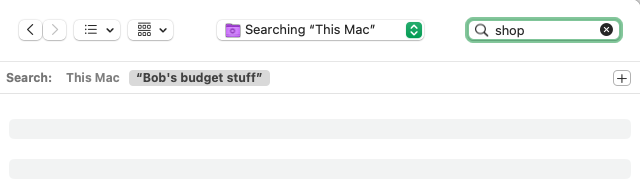


If I then select the *tab* "This Mac", I get "shop" results returned:


Since "Searching "This Mac"" is displayed in the drop down menu (and is positioned directly left of the search field, to boot), I would expect (but not want) the scope to be "This Mac". This example is not in the Finder app, but I think the search behavior is comes from Finder / search.


My current folder is the active folder in the search row (with folder tabs listed), and in agreement with my Finder preference; that's all good. I do understand that the "Search: This Mac Bob's budget stuff 'row' has a plus sign button where you can select filters, and that can be useful, but the dropdown scope should follow my Finder preference (which is indeed the highlighted, and in scope, folder, on the 'Search' row, IMO.


I reported this to the Apple feedback site.

Jan 2, 2026 10:05 AM in response to bob7

When, for example, in Numbers.app, I do a File > Open, the top dropdown menu lists the current (most recently used by Numbers, I believe) folder, as expected, but when I enter search criteria, "Searching "This Mac"" is shown in the dropdown menu; not my current folder. However, the highlighted tab is set to the most recently opened folder (from Numbers), e.g., "Bob's budget stuff" (which is indeed, my 'current folder'). No results are returned, because the scope is set to that folder; not to "This Mac", as displayed in the dropdown menu:

When I search from the Open File dialog in Numbers, it has Searching <current folder> in the popup menu and the search scope. If I change the scope to This Mac, the "searching" folder in the popup menu doesn't update. If I click on the menu, it updates to Searching "This Mac." I think the problem is the popup menu isn't updating, but the search scope does update.

Jan 2, 2026 10:17 AM in response to bob7

When I choose File > Open in Numbers v14.4, I see the customary macOS class presenting a faux Finder window with additional modifications. With the Searching "This Mac" as the default selection, it is not looking in the current folder as the real Finder search allows. I can use that Numbers Open Panel search field to look for barf.numbers:

name:barf


There is a single barf.numbers found under This Mac — only in my Documents folder. If I copy that Numbers document to the Desktop, and repeat the search in that Open file panel, This Mac shows two files and "Desktop" shows the file recently copied there.


Do not confuse real Finder searches with internal application open panel search behavior.

Jan 2, 2026 10:24 AM in response to VikingOSX

"Do not confuse real Finder searches with internal application open panel search behavior."


True, that. Nonetheless, I imagine Apple uses some of the same code libraries(?) in Numbers as are used in Finder—but in any case, the dropdown is not updating, as you mentioned, and thus presenting contradictory 'metaphorical affordances'.

Searching with metadata attributes works in the Spotlight 'window', but not in Finder windows.

Welcome to Apple Support Community
A forum where Apple customers help each other with their products. Get started with your Apple Account.