You would be better served to start your scanned French text on the Mac running macOS 26.1 with a supported scanner and using Apple's Image Capture with the OCR option selected. Then you can simply copy/paste the OCR'd content to Pages, clean up all of the unwanted linefeeds that coping content from PDFs cause.
Then you select the text in Pages, right-click and choose the translate option.

There will be a selector that may be in Dutch already, or French and when you click on that selector, you will see the means to produce Dutch translation.
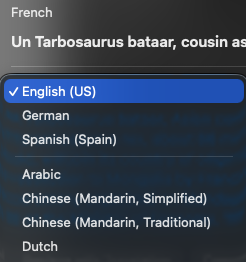
And once the Dutch translation is selected you will see the following, where the color of text is that of your Theme color chosen in System Settings > Appearance:
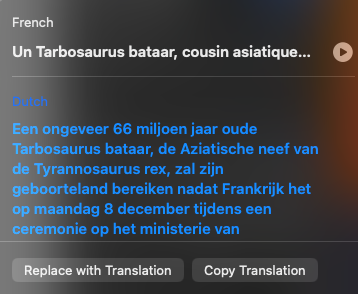
You may want a separate new Pages document and copy/paste the translation to it rather than replace the French with Dutch in the existing document.
All of the above because the Preview application in iPadOS 26.1 has not implemented OCR functionality for PDF scans yet.
If you do not have a scanner, and rely on the iPad camera for that purpose, I would then Share those PDF camera scans with your Mac via iCloud Drive. On macOS, you can open each in Preview and via the Export panel, OCR PDFs with the following setting:
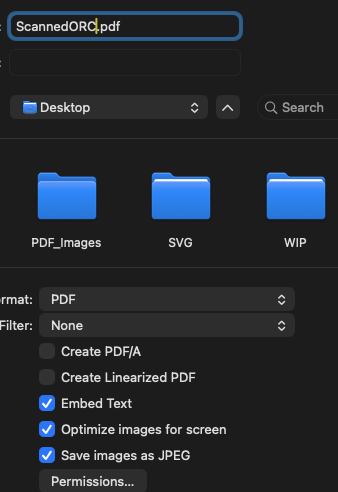
Although I also tested Live Text on the PDF generated by the iPad camera while on the Mac — without using Preview to OCR the text, when copy/pasted into Pages, the text was miniscule and again, one would have to cleanup all of the line feeds, and the extra step of enlarging the text after the translation. Your choice.