Add new Mac photos to existing Photos Library on HDD

Hello, anyone


I want to move my photos on mac to external HDD. But the HDD already has Photos Library from previous backup. Is there any way to move new photos on mac to this HDD, without deleting that its Photos Library? So the new photos just update the Photos Library.


Thank you.

Posted on Nov 23, 2025 3:23 AM

Reply
Question marked as Top-ranking reply

Posted on Nov 23, 2025 7:32 AM

First, And how is your external drive formatted? To avoid damaging the Photos Library an external drive must be formatted in either APFS format or Mac OS Extended (Journaled) format. The drive must be connected directly to the Mac by cable, not networked, clouded, NASed, etc. Additionally, the drive can not have had Time Machine on it since it was formatted. You didn't tell us what OS you are using, but there have been so many problems with using incompatible drives that the newest macOSs won't even allow a Library on a non-Mac formatted drive to open, since there is a chance of damaging the Photos database. See this:

Move your Photos library to save space on your Mac - Apple Support

If this drive is in a an incompatible format, stop running Photos with it immediately!  A Photos Library can sit on an incompatible drive, but running it may corrupt the database.


Now, there's move and there's merge. I'm not quite sure which you're asking about.


You can move a Library to another folder or another drive just by grabbing it and dragging it there. Dragging to a new drive gives you two copies, since the original is left in its place.


To use the new Library with iCloud and other apps you will need to designate it as the System Library. The System Library is set in Photos' Settings>General:

As to merging, you didn't say how extensive the Libraries are. If you just want to add the pictures of one Library to another, then here's one merging suggestion: In your System Library choose the menu File>Import, and select the other Library, then "Review for Import." Photos will tell you that some pictures are already in the Library.
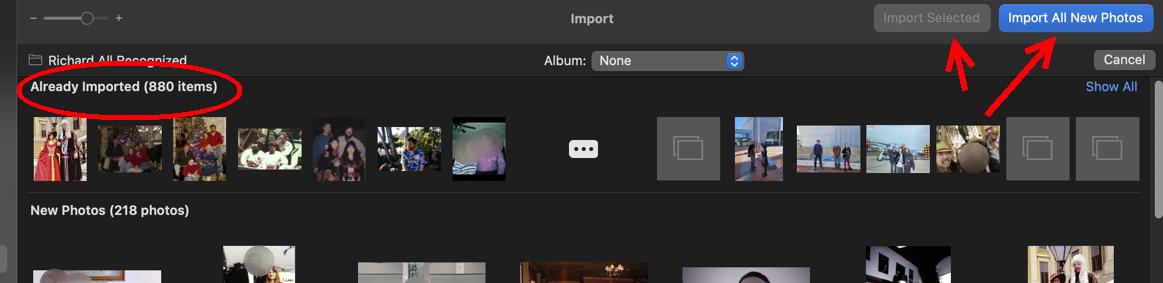
Then you can go through and select among the new ones, or just Import All New Photos. Super easy! Pictures that look the same but have different filenames or different resolutions may get through the filter, so you can get those later with Photos' built-in duplicate finder.


If you've done lots of organizing of pictures into albums and folders, then you lose that organization-- the import process only gets pictures, not albums. If Albums and Folders are important, then the best merge system is the trusted  3rd party app PowerPhotos ($40)  which will merge Libraries preserving the organization. PowerPhotos is useful for all sorts of things for people with extensive Libraries or who have multiple Libraries.


You didn't say if you're using iCloud Photos, but if so, then that's another way to merge Libraries with their organizing albums and such. You first make one the System Library, wait for it to transfer all its stuff to iCloud, and then set the other Library as the System Library, and do the same.


Will some of this work for you?



9 replies
Question marked as Top-ranking reply

Nov 23, 2025 7:32 AM in response to Khalim88

First, And how is your external drive formatted? To avoid damaging the Photos Library an external drive must be formatted in either APFS format or Mac OS Extended (Journaled) format. The drive must be connected directly to the Mac by cable, not networked, clouded, NASed, etc. Additionally, the drive can not have had Time Machine on it since it was formatted. You didn't tell us what OS you are using, but there have been so many problems with using incompatible drives that the newest macOSs won't even allow a Library on a non-Mac formatted drive to open, since there is a chance of damaging the Photos database. See this:

Move your Photos library to save space on your Mac - Apple Support

If this drive is in a an incompatible format, stop running Photos with it immediately!  A Photos Library can sit on an incompatible drive, but running it may corrupt the database.


Now, there's move and there's merge. I'm not quite sure which you're asking about.


You can move a Library to another folder or another drive just by grabbing it and dragging it there. Dragging to a new drive gives you two copies, since the original is left in its place.


To use the new Library with iCloud and other apps you will need to designate it as the System Library. The System Library is set in Photos' Settings>General:

As to merging, you didn't say how extensive the Libraries are. If you just want to add the pictures of one Library to another, then here's one merging suggestion: In your System Library choose the menu File>Import, and select the other Library, then "Review for Import." Photos will tell you that some pictures are already in the Library.

Then you can go through and select among the new ones, or just Import All New Photos. Super easy! Pictures that look the same but have different filenames or different resolutions may get through the filter, so you can get those later with Photos' built-in duplicate finder.


If you've done lots of organizing of pictures into albums and folders, then you lose that organization-- the import process only gets pictures, not albums. If Albums and Folders are important, then the best merge system is the trusted  3rd party app PowerPhotos ($40)  which will merge Libraries preserving the organization. PowerPhotos is useful for all sorts of things for people with extensive Libraries or who have multiple Libraries.


You didn't say if you're using iCloud Photos, but if so, then that's another way to merge Libraries with their organizing albums and such. You first make one the System Library, wait for it to transfer all its stuff to iCloud, and then set the other Library as the System Library, and do the same.


Will some of this work for you?



Nov 23, 2025 10:19 AM in response to Khalim88

If you want to move your Photos library from your Pictures folder to the external drive without overwriting the Photos library on the external drive just rename the library on the external drive to something like "Photos Library-2.photoslibrary".


If you want to merge the library-2 into your main library one of the methods is to use the paid version of PowerPhotos`. Photos can merge one library into another but you will lose some of your organizational efforts in the process, i.e. Albums and Smart Albums.


This user tip point out the differences between a PowerPhotos merge and a Photos import: Merging/Importing iPhoto/Photos library into Another Photos Library: PowerPhotos vs Photos.


PowerPhotos is the premier utility for Photos libraries on the market. It is extremely powerful and is a terrific viewer of photos in a Photos library.


Nov 24, 2025 9:45 AM in response to Khalim88

Khalim88 wrote:

• Thanks Richard for the guide.

Unfortunately, my HDD is formatted as exFAT since I have had it before my current Mac and used it with my Windows laptop.

As you've already been advised you should immediately get another external drive, format it either APSF for SDDs or OS X Extended (journaled) for HDDs and copy the files from the exFAT drive to it. Once you've done that test the library on the new drive to see if it works as expected. When you've done with the test erase the exFAT drive to OS X Extended (journaled) and use it for additional storage.


If you don't you risk losing the library on the HDD!


Be sure you have a Time Machine drive big enough to backpack both your boot drive and the new external drive.


Nov 23, 2025 12:05 PM in response to Richard.Taylor

Thanks Richard for the guide.


Unfortunately, my HDD is formatted as exFAT since I have had it before my current Mac and used it with my Windows laptop. This is my case:

  • I currently have a backup of Photo Library on my HDD (>100 GB).
  • My Mac still stores that Photo Library, but it is growing in size due to new photos from my iPhone.
  • So those Photo Libraries have different sizes and numbers of pics, and as I recall, I have also deleted some photos from Photo Library on my Mac. But I don't quite remember if I have deleted any pics from Photo Library on my HDD. The point is both Photo Libraries are not exactly the same, even before the new photos from my iPhone.
  • What I want to do is actually to move the new and extra pics ONLY from my Mac to the existing Photo Library on my HDD as to reduce the transfer time (considering the whole Photo Library >100GB).
  • And then, I want to delete my Mac's Photo Library, as I am running out of storage.


Hope this clarifies.

Nov 23, 2025 12:09 PM in response to Old Toad

Hi, there


So sorry if my question is confusing.


This is my case:

  • I currently have a backup of Photo Library on my HDD (>100 GB).
  • My Mac still stores that Photo Library, but it is growing in size due to new photos from my iPhone.
  • So those Photo Libraries have different sizes and numbers of pics, and as I recall, I have also deleted some photos from Photo Library on my Mac. But I don't quite remember if I have deleted any pics from Photo Library on my HDD. The point is both Photo Libraries are not exactly the same, even before the new photos from my iPhone.
  • What I want to do is actually to move the new and extra pics ONLY from my Mac to the existing Photo Library on my HDD as to reduce the transfer time (considering the whole Photo Library >100GB).
  • And then, I want to delete my Mac's Photo Library, as I am running out of storage.


Hope this clarifies.

Nov 23, 2025 10:51 AM in response to Khalim88

PowerPhotos is just perfect to add new photos to an archive library on an external HD.

I am doing it regularly.


My workflow:

  • To find all new photos in my main system Library, that I have added after I last archived new photos, I am creating a smart album with the rule: Date added is after ....
  • I connect the external drive and add the archive Library to PowerPhotos, if it is not already visible in the sidebar.
  • Now I open Power Photos and open my system Photos Library in PowerPhotos.
  • Then I drag the smart album with the new photos onto the archive library in the sidebar. PowerPhotos will now import all new photos to the archive library, and the items are now in the archive as well as in the system Photos Library.
  • If you do not want theaters in both libraries, check the archive, if it is readable and all new photos can be viewed, then delete all photos from the smart album, that you copied to the external archive library.


If we habe organized the new photos already with folders and albums, we could also drag the enclosing folder to the archive library, so we will find the same folders and albums there.


If your System Photos Library is an iCloud Photos Library, PowerPhotos is really the best way to copy items between libraries. The Photos.app cannot import directly from iCloud Photos Libraries, only from standard libraries, but PowerPhotos can import directly from an iCloud Photos Library. It will warn us, items are incomplete and not stored locally.


Nov 23, 2025 2:15 PM in response to Khalim88

Well, you've only mentioned pictures, not albums, so that sounds just like what I suggested first for merging.


Unfortunately, your Library is not usable on that hard drive. It's probably not harmed, but it might be if you open it in Photos. You can drag your current Photos Library to the ExFAT drive and re-start with an empty one on your internal drive. But until you have a drive formatted in APFS, you can'd do any transferring of pictures between the Libraries without risking damage.

Add new Mac photos to existing Photos Library on HDD

Welcome to Apple Support Community
A forum where Apple customers help each other with their products. Get started with your Apple Account.
