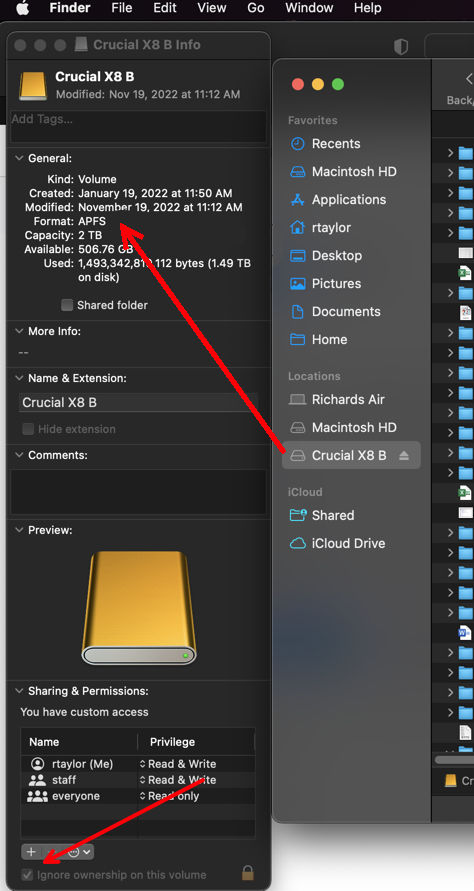
As Yer_Man suggests, the first thing that we think of is about the external drive being improperly formatted. To avoid damaging the Photos Library an external drive must be formatted in either APFS format or Mac OS Extended (Journaled) format. The drive must be connected directly to the Mac by cable, not networked, clouded, NASed, etc. Additionally, the drive can not have had Time Machine on it since it was formatted. There have been so many problems with using incompatible drives that the newest macOSs won't even allow a Library on a non-Mac formatted drive to open, since there is a chance of damaging the Photos database. See this:
Move your Photos library to save space on your Mac - Apple Support
If this drive is in a an incompatible format, stop running Photos with it immediately! A Photos Library can sit on an incompatible drive, but running it may corrupt the database.
You might also want to check the permissions for your new drive, if you're sure it's properly formatted. This is not usually a problem, but it sometimes comes up.
Click on the drive icon, and open the Info window with command-i. Go to the bottom:
If “Ignore Ownership” is there, then it should be checked.
You're right-- if the drive is properly formatted, then you can set an external Library as the System Library in Photos' Settings>General.
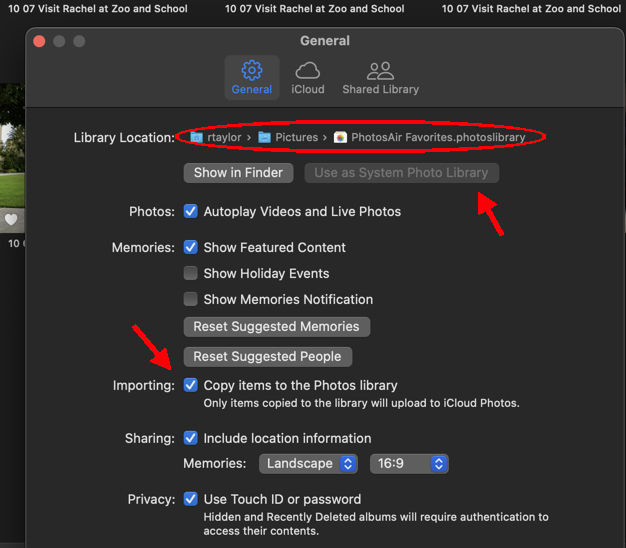
If it's grayed out, as above, then this Library is already the System Library.
You say that your internal Library in the Pictures folder doesn't open, and that's troubling, You may need to re-build the Library by closing Photos and option-command-clicking the app icon.
Let us know how it goes…