I'm going to tell you more than you wanted!
There are at least 5 important ways to organize pictures:
(1) Put your pictures in Albums. When you "put a picture into an album," its name is added to a list of pictures from the Library that display together when the album is clicked, kind of like a music playlist, but for pictures. So two albums can both have the same picture name in their lists (like two playlists with the same song,) and that picture will show up when you click either album, but there's only one picture file-- it's just on multiple lists. And when you remove a picture from an album, its name remains in the lists of other albums, and the file still remains in your Library. You don't get fewer pictures in your Library because you remove one from an album; you just get fewer names in the album list.
So albums give a specific view of your pictures. The picture of "Aunt Ethel at the Grand Canyon" can be in the "Aunt Ethel" album with other pictures of Aunt Ethel, and it can also be in the "Grand Canyon" album with pictures of other people at the Grand Canyon. And it can also be in a the "September 2015" album with other things that happened then. Each album is pointing to a single file stored in the Photos Library, so having pictures in multiple albums takes up no more storage space. As you can imagine, this is very powerful in organizing pictures.
So, when you put pictures "into" albums, don't think of just one album-- think of all the albums you might want to put it in. You cannot have too many albums! See next:
(2) If you have lots of Albums, put your albums into Folders. Folders can have albums, and they can have folders that have albums in them. (But folders don't hold individual pictures.) Since I've been doing this for awhile, I have folders for events inside folders for years inside folders for decades. Think about that— 100 years can be in 10 folders, and you can get to any event quickly.
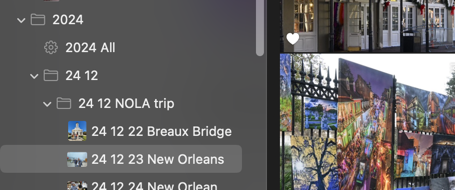
You can also have a folder of Vacations, with one folder inside organized by place and another one folder inside organized by season, etc. A picture can be in many albums without taking up any more space, so you can have lots of ways for finding that one picture you were thinking about.
I also have folders for "Best Picture" albums and folders for "Wife's family" albums, and so on.

Since you can put albums into folders, it never hurts to have extra albums. If you have a bunch of albums you don't look at very often, then you can put them all in a "Not Used Much" folder, and all of those only take up a single space in Albums section of the iPhone or Mac. If you have 1000 albums, they'll take multiple screens to display. But if they're in folders, then they can all fit on one or two screens.
(3) Use Smart Albums in Macs. Add Captions and Keywords and Titles to pictures, and then you can use those in Smart Albums to make dynamic collections. If you have a bunch of albums of horse shows, then you can have HorseShow as a keyword, and you can use a Smart Album to get horse shows together. And it will automatically update.
Some people use only Smart Albums that automatically collect pictures by date or topic or whatever. The downside of that is that Smart Albums don't show up on iPhones and iPads. So when I have a Smart Album that collects, say, best pictures from the last month, I periodically use that to fill a non-smart album so I'll see it on my mobile devices.
(4) With Keywords you can use Filters. You can go to the Library and restrict it to HorseShows and Favorites. It's not as versatile as Smart Albums, but it's really quick.
(5) Use Favorites-- they work in Smart Albums. Here's some stuff about using keywords and smart albums to select favorites: Choosing Favorites using Keywords in Mac … - Apple Community
The point is to be able to find what you want. So I have been taking pictures at Horse Shows lately. I have an Album 25 09 03 Horse Classic (say,) but I put that album in the Sept 2025 folder which is in the 2025 folder. I also put it in the Horse Shows Folder. (Duplicating an album makes a copy of the list— it doesn’t make any more pictures.) Some of those pictures are in the Best of 2025 Album in the Best Folder. And, because HorseShow is a Keyword, I can grab them with a Smart Album in my "Temp Smart" folder. And, in the Library view, I can turn on the HorseShow Filter and the Favorites Filter to see the best horse show pictures. One of those pictures is in maybe 4 albums and how many folders?
So I don't have to have one preference-- I can do them all, and each way gives me a chance of finding the picture I want even if I don't know the date. As someone else here (léonie) says, it's like libraries used to have a book listed in 3 card catalogs to help you find what you want. (This analogy may only work for people who used libraries before computers.)
What do you think? Too much?


