How do I sync my iCloud photos to my iMac?

My iCloud photos library contains the correct and current photos. My library on my Mac is not correct and is not syncing. I want to get the photos from iCloud to download to my Mac, essentially overwrite the local library and start syncing correctly. However, I'm scared to death I'm going to do something to delete the correct library in iCloud. Thanks!!


[Re-Titled by Moderator]

Original Title: Local Photos Library Not The Correct One, Correct One In iCloud

iMac 27″, macOS 12.7

Posted on Sep 29, 2025 1:16 PM

Reply
Question marked as Top-ranking reply

Posted on Sep 30, 2025 9:13 AM

First thing to know is that connecting to iCloud doesn't erase pictures. It just merges them all together. Photos will do its best in the merge to avoid duplicates. So, you can continue with your current Library, if you want, since this is just a merge.


But if you want to start fresh, then you should first (meaning before turning on iCloud on the Mac!) use one of these three methods:

  • Delete everything in your Photos Library on the Mac.
  • Or, you could just go to the Pictures folder and trash the Photos Library-- and don't empty the trash until you're sure it's all working. When you run Photos again, it should create a whole new empty Library.
  • Or, you can just create a brand new empty Library using the Library picker. You close Photos and then option-click the Photos icon to get this:

You can see that I have several Libraries.


Now that you have a Library, make sure the Library you're using is your System Library by going to Photos' Settings>General:

Here, "Use as Photos System Library" is grayed out, because this is already my System Library. If yours isn't, perhaps because you've created a new Library, then turn this on. And double check the path and the "Copy Items" things.


Then you can go to Settings>iCloud
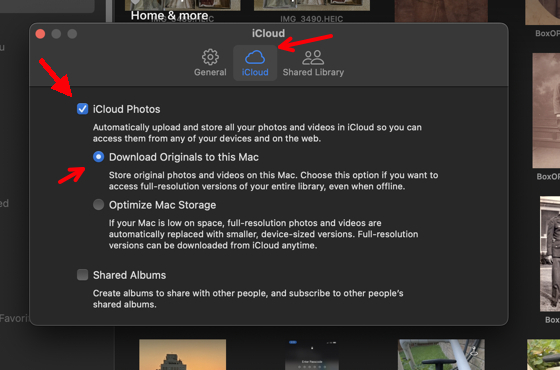
"Download Originals" is the best choice, because it allows you to back up your Photos Library on the Mac. "Optimize" saves storage space, but then the full sized pictures aren't available for backup.


Then you sit back and wait. Wait some more, and eventually this new Library will fill with full sized images from iCloud.


Make sure this Library has all your pictures, then trash the old Library.


If you keep other Libraries, then to open any of your Libraries in Photos, you can  use the Library Chooser, or you can just double click one. But the System Library is the only one connected to iCloud.


Let us know how it goes…



2 replies
Question marked as Top-ranking reply

Sep 30, 2025 9:13 AM in response to mwoodva

First thing to know is that connecting to iCloud doesn't erase pictures. It just merges them all together. Photos will do its best in the merge to avoid duplicates. So, you can continue with your current Library, if you want, since this is just a merge.


But if you want to start fresh, then you should first (meaning before turning on iCloud on the Mac!) use one of these three methods:

  • Delete everything in your Photos Library on the Mac.
  • Or, you could just go to the Pictures folder and trash the Photos Library-- and don't empty the trash until you're sure it's all working. When you run Photos again, it should create a whole new empty Library.
  • Or, you can just create a brand new empty Library using the Library picker. You close Photos and then option-click the Photos icon to get this:

You can see that I have several Libraries.


Now that you have a Library, make sure the Library you're using is your System Library by going to Photos' Settings>General:

Here, "Use as Photos System Library" is grayed out, because this is already my System Library. If yours isn't, perhaps because you've created a new Library, then turn this on. And double check the path and the "Copy Items" things.


Then you can go to Settings>iCloud

"Download Originals" is the best choice, because it allows you to back up your Photos Library on the Mac. "Optimize" saves storage space, but then the full sized pictures aren't available for backup.


Then you sit back and wait. Wait some more, and eventually this new Library will fill with full sized images from iCloud.


Make sure this Library has all your pictures, then trash the old Library.


If you keep other Libraries, then to open any of your Libraries in Photos, you can  use the Library Chooser, or you can just double click one. But the System Library is the only one connected to iCloud.


Let us know how it goes…



Sep 29, 2025 7:25 PM in response to mwoodva

Hi!


Navigate to Settings > "Your Apple Account" > iCloud. Then make sure that Photos is either checked, or saving to iCloud. Then open the photos application and navigate to Settings (Tap on "Photos" in the top left hand corner) > iCloud. Then make sure iCloud Photos is enabled, and it should be syncing to your Mac.


Sorry if this isn't exactly what your settings look like, I am not too familiar with macOS Monterey. Hope this helps!

This thread has been closed by the system or the community team. You may vote for any posts you find helpful, or search the Community for additional answers.

How do I sync my iCloud photos to my iMac?

Welcome to Apple Support Community
A forum where Apple customers help each other with their products. Get started with your Apple Account.