Removing photos from Mac Pro desktop without deleting them from photo library.

I've downloaded the latest MacOS Tahoe. Now photos are appearing on my desktop. How do I remove photos from desktop without deleting or removing them from photo library?

MacBook Pro 14″, macOS 26.0

Posted on Sep 25, 2025 2:13 PM

Reply
Question marked as Top-ranking reply

Posted on Sep 26, 2025 7:20 AM

Normally, pictures seen in Photos are stored inside the Photos Library package, but it's possible that the normal process was bypassed accidentally. First thing, check your Library's status by going to Photos' Settings>General:
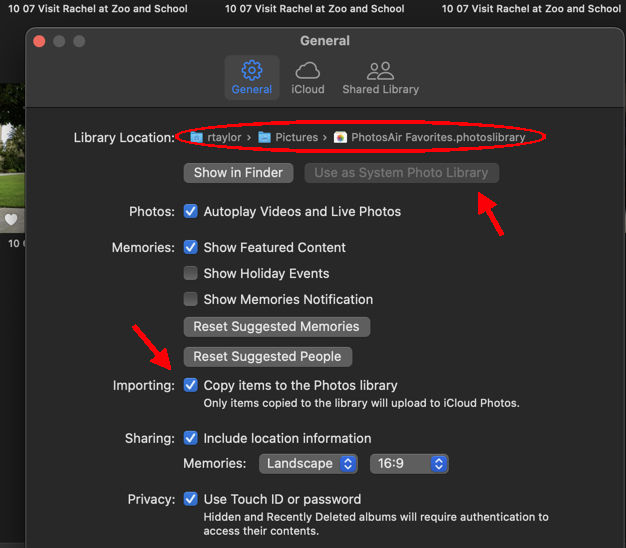
and make sure everything makes sense, and that "Copy Items" is checked.


For one of these desktop pictures, can you find it and see it in your Photos Library? Can you go into Edit mode? If so, then you need to find out if the desktop version is the original. Send the desktop copy to trash (you can undo that if necessary,) and see if you can still edit the version in Photos. If you can't now go into edit mode with that picture, then Photos is depending on it. In that case, you should choose, in Photos, File>Consolidate to get that picture back in line. Then do that with the other desktop pictures you find in Photos.


If trashing the desktop picture doesn't affect the Photos version, then you can leave it trashed or import it into Photos. If a desktop picture didn't appear in Photos, then you can trash it or import it or move it.


Let us know…

2 replies
Question marked as Top-ranking reply

Sep 26, 2025 7:20 AM in response to artcalm

Normally, pictures seen in Photos are stored inside the Photos Library package, but it's possible that the normal process was bypassed accidentally. First thing, check your Library's status by going to Photos' Settings>General:

and make sure everything makes sense, and that "Copy Items" is checked.


For one of these desktop pictures, can you find it and see it in your Photos Library? Can you go into Edit mode? If so, then you need to find out if the desktop version is the original. Send the desktop copy to trash (you can undo that if necessary,) and see if you can still edit the version in Photos. If you can't now go into edit mode with that picture, then Photos is depending on it. In that case, you should choose, in Photos, File>Consolidate to get that picture back in line. Then do that with the other desktop pictures you find in Photos.


If trashing the desktop picture doesn't affect the Photos version, then you can leave it trashed or import it into Photos. If a desktop picture didn't appear in Photos, then you can trash it or import it or move it.


Let us know…

This thread has been closed by the system or the community team. You may vote for any posts you find helpful, or search the Community for additional answers.

Removing photos from Mac Pro desktop without deleting them from photo library.

Welcome to Apple Support Community
A forum where Apple customers help each other with their products. Get started with your Apple Account.