Unable to search by keywords in photos

I have organized my photos by using (around 160) keywords to thousands of photos. The filter options no longer offers a keyword search. It says to add keywords to 'quick group' in order to filter, but it won't let me add all of my keywords to the list. Any suggestions?

(using Sequioa 15.6.)

MacBook Pro 14″, macOS 15.6

Posted on Sep 17, 2025 12:24 PM

Reply
Question marked as Top-ranking reply

Posted on Sep 18, 2025 8:25 AM

As you read, the Filter works with keyword shortcuts. Those shortcuts are one character long, and case doesn't matter, so there are only about 26+10+punctuation, I guess-- certainly not 160 shortcuts. Have you read this?

Find photos by keyword in Photos on Mac - Apple Support

Quickest is towards the bottom. You may have to open the Keyword Manager very very wide to see the shortcuts. Here are my shortcuts for rating pictures:


You can search for keywords directly in the Search Field at the top right. But the primary way to search with keywords is to use Smart Albums. Smart Albums provide a very powerful tool in Photos.


Do keywords work for you in Smart Albums?


Here is an example of using Keywords for a particular purpose, using Filter and Smart Albums, and it has some pictures that might help:

Choosing Favorites using Keywords in Mac … - Apple Community


There's lots of organizing power, here, so let us know how it goes…

10 replies
Question marked as Top-ranking reply

Sep 18, 2025 8:25 AM in response to pegpad

As you read, the Filter works with keyword shortcuts. Those shortcuts are one character long, and case doesn't matter, so there are only about 26+10+punctuation, I guess-- certainly not 160 shortcuts. Have you read this?

Find photos by keyword in Photos on Mac - Apple Support

Quickest is towards the bottom. You may have to open the Keyword Manager very very wide to see the shortcuts. Here are my shortcuts for rating pictures:


You can search for keywords directly in the Search Field at the top right. But the primary way to search with keywords is to use Smart Albums. Smart Albums provide a very powerful tool in Photos.


Do keywords work for you in Smart Albums?


Here is an example of using Keywords for a particular purpose, using Filter and Smart Albums, and it has some pictures that might help:

Choosing Favorites using Keywords in Mac … - Apple Community


There's lots of organizing power, here, so let us know how it goes…

Sep 19, 2025 7:21 AM in response to pegpad

It should work typing in the Search Field. What is different is that, while the search returns pictures with the keyword,
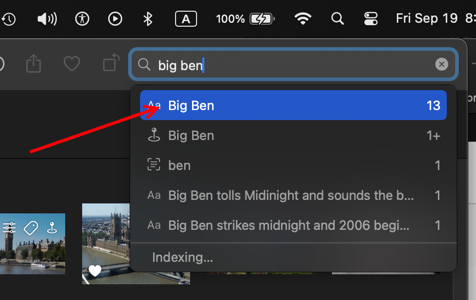
it also returns pictures with text of the keyword or location names, and any images that it thinks might be the search item. But it doesn't tell which ones are from keywords. It does indicate by icon how it found some results. In the above example, there is a text icon next to the first one, but those are the ones with keywords.


There are items, like Dollhouse for me, that it doesn't recognize, and I get pictures with the keyword Dollhouse.
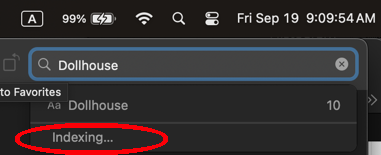
A Smart Album tells me that I have 10 pictures with "Dollhouse" as a keyword. The search says "indexing" probably because it had not already included "Dollhouse" in its database of objects or text. It's the first time I've used the Search filed to hunt for "Dollhouse;" I wonder if the "indexing" will be replace by other things in the future.


If it's still not working for you, try these things:

  • Restart the computer (of course)
  • Re-start in Safe Mode. This bypasses certain potentially disruptive processes, and it often helps. Safe Mode is different for different computers, so see this: 

           Start up your Mac in safe mode - Apple Support 


Those are the easiest things to try first. Then try these:

  • Rebuild your Photos Library--close Photos and re-launch by option-command-clicking the app icon. If you use iCloud Photos, it’s possible that this will cause a re-sync that lasts long enough to make you nervous.
  • Use another library if you have one, or make a small test Library with a few pictures in it and see if the same thing happens. You can create a new Library by closing Photos and then option-clicking on the Photos icon. Keywords should work right off, though searches for objects, faces, locations and the like will have to wait until Photos scans the pictures records it in the database.
  • Make a new user and see if the same problem recurs with it.  This is a bit harder, because a new user can't access a different user's stuff. You would need to move your Library out of your own user's folder up to the general "Users" folder, or make a new Library.


The idea is to find out if the problem is with the Library, with your account, or with caches and login items, and stuff like that. One of these steps may fix the problem, but their failure to work also helps figure out what's happening.


Let us know what happens…

Sep 19, 2025 11:19 AM in response to pegpad

When I want to filter by a certain keyword, I am adding just the currently relevant keywords to the quick group.

if we add too many keywords to the quick group, we can no longer access all items of the filter, because it is not possible to scroll the filter. For example, I can now not reach the position to filter by favorites or by edited photos, because the list is too long and the the first items are hidden.


It is much better to have only a few, currently needed keywords in the quick group, to keep it short and to be able to memorize the keyboard shortcuts.


If you want to be able to search for keywords and to get only results for matching keywords and not any text results similar to the keyword, you have to make the keywords unique, for example, by including special characters in the keywords. I prefix my keywords for the face names by the prefix "face:", so searching for "face:mickey" will only find photos with this keyword.


Sep 19, 2025 4:34 PM in response to pegpad

pegpad wrote:

I have organized my photos by using (around 160) keywords to thousands of photos. The filter options no longer offers a keyword search. It says to add keywords to 'quick group' in order to filter, but it won't let me add all of my keywords to the list. Any suggestions?
(using Sequioa 15.6.)

Do you want to search for a photo with all of your 160 keywords? If you create a Smart Album you can add multiple keywords to it for fine all photos that have those keywords assigned to it by choosing "All".


If you use. the "Any" setting you'll get all photos with either keyword assigned to it.


The examples are with Sequoia.


You can easily assign the keywords to a photo(s) using the Keyword Manager pane:


Sep 20, 2025 7:59 AM in response to léonie

Richard said: You may have to open the Keyword Manager very very wide to see the shortcuts.
léonie wrote: My MacBook Air has a tiny display. There is not much space for a long list.

I can see no reason that the keyword manager has to be so wide to add shortcuts! At least we can make it small for most uses, even for editing keywords-- it's just adding shortcuts that requires the nearly full screen width.

Sep 20, 2025 9:43 AM in response to Richard.Taylor

I meant the height, not the width of the panel length of the list, Richard, top to bottom. Once the lengths of the list in the filter reaches the bottom of the screen, the top entries in the filter can no longer be accessed, because they vanish behind the upper border, and the panel cannot be scrolled.

As you can see in my screenshotin my earlier post, I can only filter by the keywords and "Not in any album", but no longer by Favorites, Videos, edited, screenshots. These filter options have vanished behind the horizon. To get them back, I have to remove some key shortcuts for keywords and shorten the quick group.


This thread has been closed by the system or the community team. You may vote for any posts you find helpful, or search the Community for additional answers.

Unable to search by keywords in photos

Welcome to Apple Support Community
A forum where Apple customers help each other with their products. Get started with your Apple Account.

