How to crop in Photos (for desktop) to specific dimensions/pixels?

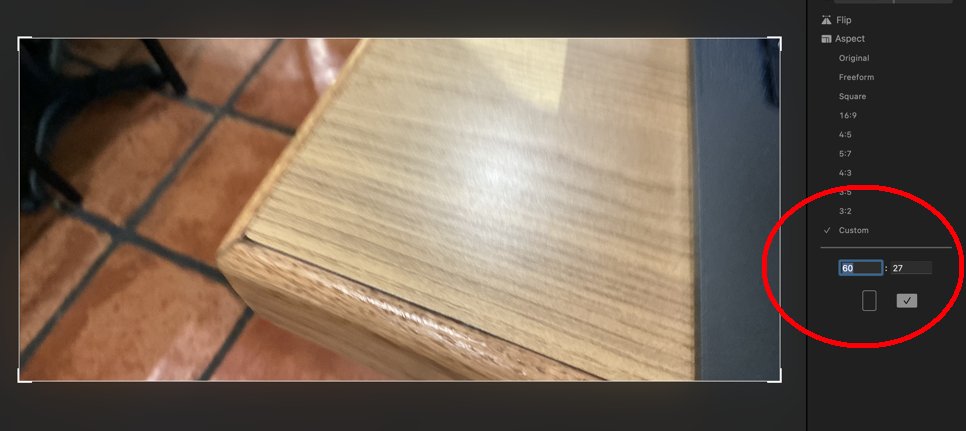
I need to crop photos to a specific size (600x270 pixels). I used to be able to do this by entering it in the Crop section of the Photos desktop app, but now it only lets me enter a custom aspect ratio...did something change?


Also willing to use the Preview app if that's easier, but I don't have Photoshop and need an easy way to crop to this specific size. Thanks!


Here's a screenshot of what I'm looking at—can't see where to enter custom pixel size, only aspect ratio.


[Edited by Moderator]

MacBook Air 13″, macOS 15.5

Posted on Sep 30, 2025 1:27 PM

Reply
9 replies

Oct 1, 2025 12:53 PM in response to RoseCahalan

You can resize your image files with the demo version of GraphicConverter. You can batch resize photos to 600 x 270 by putting them in a folder and adding the folder to GraphicConverter. Then select all of the folders and select the Resize ➙ Quickscale menu option.


That will give you this window where you set the dimensions of the resulting images:


Click OK and sub folder and you'll get a subfolder with the reduced sized files.


[Edited by Moderator]


Oct 1, 2025 6:43 AM in response to RoseCahalan

RoseCahalan wrote: …Here's what I see when I enter 60x27 for aspect ratio...doesn't look right.

That makes no sense! Here's what I get:
which looks just right. It's almost like yours is seeing a decimal point, or something that we don't.It certainly looks the same! Did you try messing with it--try 60x30 or 61x28, just to see if you can tell what's going on? This was a normal 4x3 picture to begin with, right?


What you did was clever, but way too much trouble!


If jiggering with it doesn't work, close and re-open Photos. If that doesn't work, then to narrow things down, try these steps:

  • Restart the computer (of course)
  • Re-start in Safe Mode. This bypasses certain potentially disruptive processes, and it often helps. Safe Mode is different for different computers, so see this: 

           Start up your Mac in safe mode - Apple Support 

  • Use another library if you have one, or make a small test Library with a few pictures in it and see if the same thing happens. You can create a new Library by closing Photos and then option-clicking on the Photos icon.
  • Make a new user and see if the same problem recurs with it.  This is a bit harder, because a new user can't access a different user's stuff. You would need to move your Library out of your own user's folder up to the general "Users" folder. 
  • Rebuild your Photos Library--close Photos and re-launch by option-command-clicking the app icon. If you use iCloud Photos, it’s possible that this will cause a re-sync that lasts long enough to make you nervous.


The idea is to find out if the problem is with the Library, with your account, or with caches and login items, and stuff like that. One of these steps may fix the problem, but their failure to work also helps figure out what's happening.


Let me know!

Sep 30, 2025 1:43 PM in response to RoseCahalan

One way, using Photos, would be to set a custom aspect ratio in Crop Mode:

I have mine set to 16x10, since that's the aspect ratio of my MacBook screen. You could use 600x270. But it would be the same as 60x27, or 20x9-- it sets the ratio, not the number of pixels.


Once that's set, when you use File>Export>Export nn Photos, you get this:

Photos Export doesn't let you change the aspect ratio on the fly, since you need to see what that looks like first.


Exported pictures can have their own quality, format, and file name, including an index for order, so it's a great way to produce picture files.


Is this what you need?

Oct 1, 2025 6:46 AM in response to Richard.Taylor

Thanks, Richard. Here's what I see when I enter 60x27 for aspect ratio...doesn't look right.


I did try exporting the photo with a width of 600 pixels, and that gets me halfway there. I'm then able to open the photo in Preview and manually crop it to a height of 270, by dragging and dropping. But this is an onerous, multistep process. (And for some reason the width is only 596, not 600, which might be a problem for the newsletter app I'll be sending this photo in.)


[Edited by Moderator]

Oct 1, 2025 8:14 AM in response to Richard.Taylor

I have over 100gb of free space. Sorry to report that I just tried all the steps (new user, new library, safe mode) and nothing worked. It doesn't matter what photo I try to crop - it just appears as a narrow bar like in the screenshot I posted above. I tried other custom aspect ratios and had the same issue.

I have found a workaround with Canva for now but it's a pain, so please let me know if you're able to think of anything else!


This problem started a few weeks ago, and I'm pretty sure I used to crop in the exact same way (entering in custom aspect ratio). I thought maybe it could be a bug from a recent software update, but then I tried my personal Macbook (which I haven't updated in a while) and had the same problem.


[Edited by Moderator]

Oct 1, 2025 8:11 AM in response to RoseCahalan

100GB out of what? Again, I had random troubles with less than 150 GB free. I'm using a MacBook right now, macOS 15.6, and it works fine, so what else might be different?


Using flaky 3rd party apps, like cleaners or VPNs, can mess things up, but the steps you went through would show that. My experience is that low storage isn't exposed by those tests.

This thread has been closed by the system or the community team. You may vote for any posts you find helpful, or search the Community for additional answers.

How to crop in Photos (for desktop) to specific dimensions/pixels?

Welcome to Apple Support Community
A forum where Apple customers help each other with their products. Get started with your Apple Account.

