why cant i restart my Ipad
my ipad is locked and it will not restore
iPhone 6, iOS 10
my ipad is locked and it will not restore
iPhone 6, iOS 10
Hello tygremoane,
If you have forgotten the passcode for your iPad, these steps from If you forgot your iPad passcode - Apple Support should help you regain access:
Step 1: Make sure that you have a computer (Mac or PC)
This process requires a Mac or PC. If you're using a PC, make sure that it has Windows 8 or later, and that iTunes is installed. You also need the cable that came with your iPad, or another compatible cable, to connect your iPad to the computer.
If you don't have a computer and you can't borrow one, you need to go to an Apple Store or Apple Authorized Service Provider for help.
Step 2: Turn off your iPad
1. Unplug your iPad from the computer if it’s connected.
2. Turn off your iPad using the method for your iPad model:
• If your iPad doesn't have a Home button: Press and hold one of the volume buttons and the top button at the same time until the power off slider appears.
• If your iPad has a Home button: Press and hold the top button until the power off slider appears.
3. Drag the slider to turn off your iPad, then wait a minute to make sure that it turns off completely.
Step 3: Put your iPad in recovery mode
1. Get ready by finding the button on your iPad that you'll need to hold in the next step:
• Pad models that don't have a Home button use the top button.
• iPad models that have a Home button use the Home button.
2. Press and hold the correct button for your iPad while immediately connecting your iPad to the computer. Don't let go of the button.
3. Keep holding the button until you see the recovery mode screen on your iPad, then let go.
If you see the passcode screen, you need to turn off your iPad and start again.
If you can’t get your iPad to show the recovery mode screen and you need help, contact Apple Support.
Step 4: Restore your iPad
1. Locate your iPad in the Finder or in iTunes on the computer that it’s connected to. (Learn how to find your connected iPad.)
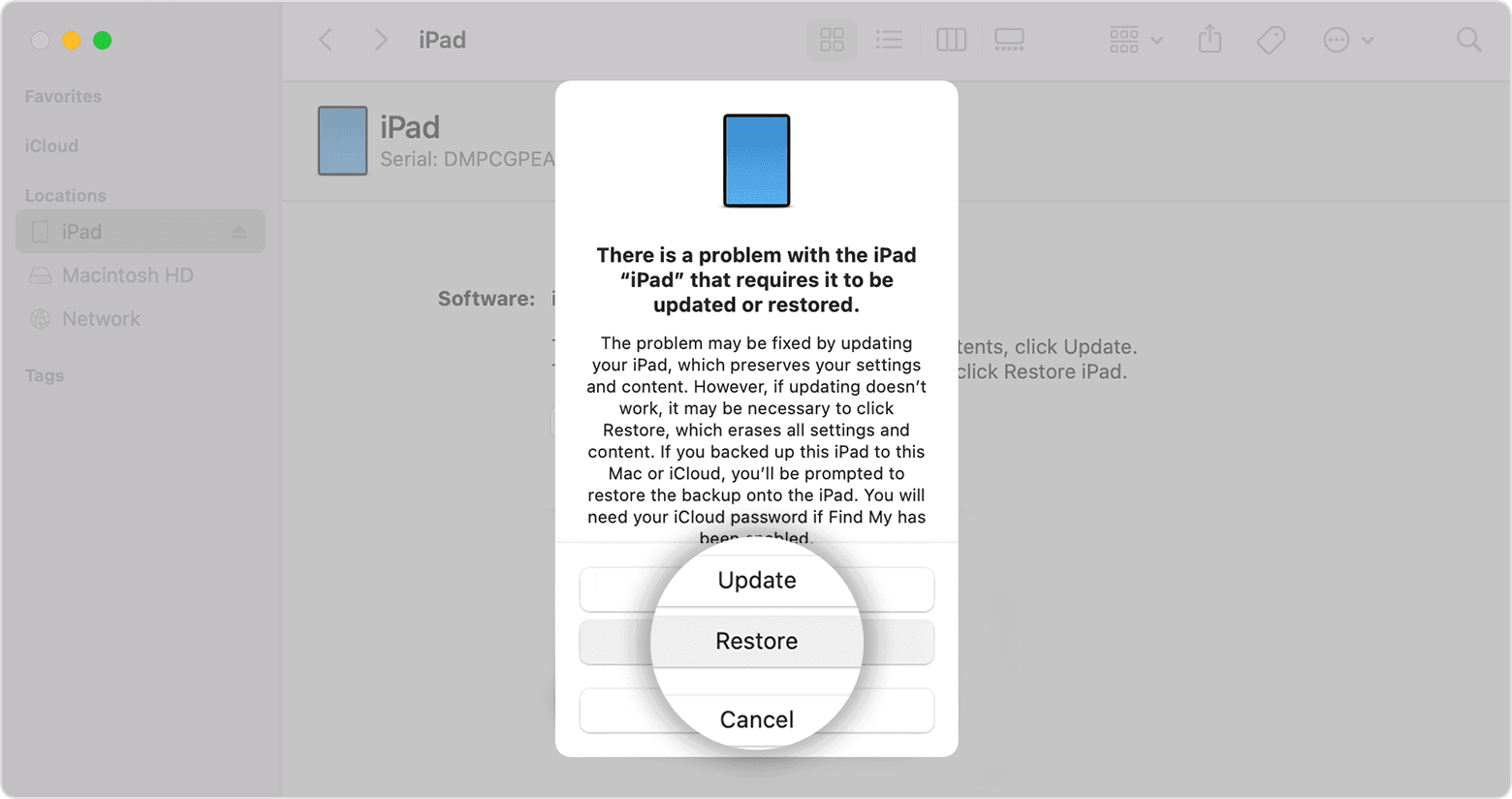
2. Choose Restore when you see the option to Restore or Update. Your computer downloads software for your iPad and begins the restore process. If the download takes more than 15 minutes and your device exits the recovery mode screen, let the download finish, then turn off your iPad and start again.
3. Wait for the process to finish.
4. Disconnect your iPad from the computer, then set up and use your iPad.
These steps should help you unlock the iPad.
Have a good day.
Hello tygremoane,
If you have forgotten the passcode for your iPad, these steps from If you forgot your iPad passcode - Apple Support should help you regain access:
Step 1: Make sure that you have a computer (Mac or PC)
This process requires a Mac or PC. If you're using a PC, make sure that it has Windows 8 or later, and that iTunes is installed. You also need the cable that came with your iPad, or another compatible cable, to connect your iPad to the computer.
If you don't have a computer and you can't borrow one, you need to go to an Apple Store or Apple Authorized Service Provider for help.
Step 2: Turn off your iPad
1. Unplug your iPad from the computer if it’s connected.
2. Turn off your iPad using the method for your iPad model:
• If your iPad doesn't have a Home button: Press and hold one of the volume buttons and the top button at the same time until the power off slider appears.
• If your iPad has a Home button: Press and hold the top button until the power off slider appears.
3. Drag the slider to turn off your iPad, then wait a minute to make sure that it turns off completely.
Step 3: Put your iPad in recovery mode
1. Get ready by finding the button on your iPad that you'll need to hold in the next step:
• Pad models that don't have a Home button use the top button.
• iPad models that have a Home button use the Home button.
2. Press and hold the correct button for your iPad while immediately connecting your iPad to the computer. Don't let go of the button.
3. Keep holding the button until you see the recovery mode screen on your iPad, then let go.
If you see the passcode screen, you need to turn off your iPad and start again.
If you can’t get your iPad to show the recovery mode screen and you need help, contact Apple Support.
Step 4: Restore your iPad
1. Locate your iPad in the Finder or in iTunes on the computer that it’s connected to. (Learn how to find your connected iPad.)
2. Choose Restore when you see the option to Restore or Update. Your computer downloads software for your iPad and begins the restore process. If the download takes more than 15 minutes and your device exits the recovery mode screen, let the download finish, then turn off your iPad and start again.
3. Wait for the process to finish.
4. Disconnect your iPad from the computer, then set up and use your iPad.
These steps should help you unlock the iPad.
Have a good day.
Locked how? Is the iPad disabled, or Activation Locked? Something else?
Activation Lock
Here are the Apple support pages that outline the Activation Lock - and the only mechanisms by which it can be turned off:
Activation Lock for iPhone, iPad, and iPod touch - Apple Support
Turn off Activation Lock – Apple Support
As you will discover, unless you are the owner of the AppleID that was last used to activate the device, or unless you can secure the cooperation of the previous owner, you’ll not be able to defeat or bypass the Activation Lock. Without documentary evidence that you are the original owner (such as sales receipt showing the serial number), Apple won’t assist - and nobody here will be able to help you.
If you have the necessary documentation, Apple have recently introduced a portal though which you may be able to request release of an Activation Lock:
How to remove Activation Lock - Apple Support & start an Activation Lock support request.
iPadOS 15.2 or later with a forgotten Passcode
Apple has introduced a new procedure with which to reset an iPad or iPhone with a forgotten Passcode - allowing you to use your AppleID and associated Password to reset your device.
How to reset your iPhone, iPad, or iPod touch when you forgot your passcode - Apple Support
You will be able to restore data from a pre-existing iCloud backup without the use of a computer, but will require a PC/Mac to restore data from an iTunes backup.
iPadOS 15.1 and earlier - and all devices that are Disabled
If your iPad is disabled, or you have forgotten your iPad passcode, you have no alternative other than to follow this process:
If you’ve forgotten the passcode on your iPad, or your iPad is disabled – Apple Support
You’ll need access to either a PC (with iTunes installed) or a Mac (with iTunes or Finder - as appropriate for the installed version of MacOS).
AppleID
You’ll need the AppleID and associated password. For which you’ll need the owner to assist. If these credentials have also been forgotten, they can be recovered by the owner here:
To recover your credentials, you’ll need access to one of the following:
Unless you AppleID account has not been fully/correctly configured, or has been seriously neglected, recovery of the AppleID and password should not be difficult.
More information about recovery of your AppleID:
If you forgot your Apple ID - Apple Support
More information about recovery of your AppleID password:
If you forgot your Apple ID password - Apple Support
When you recover access to your credentials, you would be well advised to log-in to your AppleID account from a web browser - and verify/update any email addresses and trusted telephone numbers:
why cant i restart my Ipad